접촉기,회로 차단기,감지기,인코더,PLC,변환기

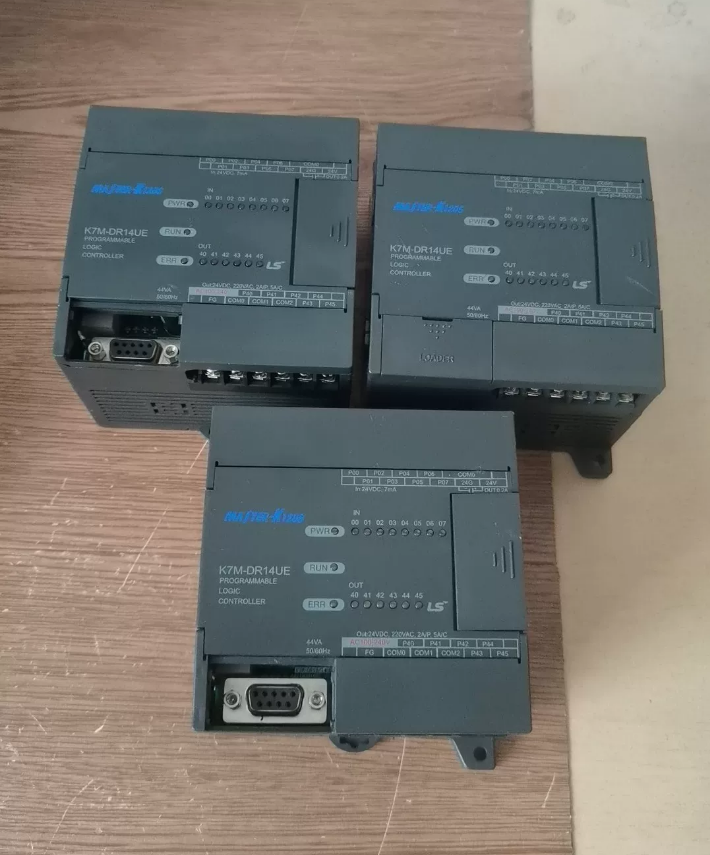

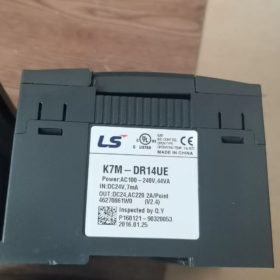
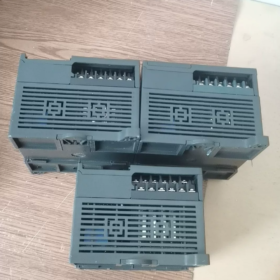
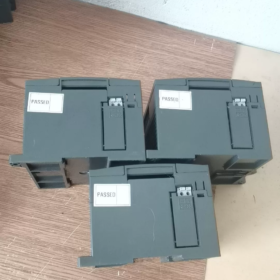
Model Code Decoding
K7M-DR14UE
- K7M: CPU main unit of MASTER-K120S series
- 디: DC24V digital input
- 아르 자형: 릴레이 출력
- 14: 총 I/O 포인트 14 (8에서 + 6~하다)
- 유: Wide-range power supply AC85~264V (AC powered)
- 이자형: 경제 버전
구별: Standard model K7M-DR14U (without E). Hardware functions differ and cannot be directly replaced.
- 핵심 전기 사양
| 목 | 사양 |
| 총 I/O | 14 전철기; 8에서 / 6~하다 |
| 디지털 입력 | DC24V sink input (NPN), opto-isolated, X00~X07 |
| 릴레이 출력 | 6 relay outputs Y00~Y05; Resistive load per contact: AC250V/2A; DC30V/2A; Not applicable for high-frequency switching |
| 전원공급장치 | AC 85~264V wide-range AC input |
| 프로그램 용량 | 2K 단계 |
| Program Retention | Supercapacitor backup; No lithium battery required |
| Onboard Communication | RS485 전용 (No RS232 on economy model); Modbus RTU and 엘에스 proprietary protocol supported |
| 확장 용량 | 맥스. 3 확장 모듈; Maximum overall I/O 120 전철기 |
| High-speed Functions | No built-in high-speed counter, pulse output or PID control for economy version |
| 설치 | DIN 레일 장착 |
| 운영 환경 | 0~55°C, 결로가 없을 것, dust-proof industrial environment |
- Key Distinction & 선택 참고 사항
- K7M-DR14UE (경제) VS K7M-DR14U (기준)
DR14UE: RS485 전용; No high-speed counter, pulse output or PID, 비용 효율적;
DR14U: RS232+RS485 onboard; supports high-speed counter, positioning and PID;
⚠️ Program logic is compatible, but hardware functions vary. Verify process requirements before replacement.
- 출력 유형: DR(계전기) vs DT(트랜지스터)
DR Relay: Suitable for solenoid valves and contactors, high-frequency pulse output unavailable;
DT Transistor: Used for servo/stepper pulse control.
- 프로그래밍 소프트웨어
Software Name: KGL-WIN (Windows-only)
Communication for download: RS485; LS dedicated programming cable required.
- 일반적인 응용 분야
Small standalone automation, conveyor equipment, packaging auxiliary machinery, simple assembly lines, HVAC 제어, logic control for low-voltage panel systems;
❌ Not suitable for: 서보 포지셔닝, high-frequency pulse output, closed-loop PID temperature control (hardware functions absent on economy model).
- Reference Economy Models in the Same Series
K7M-DR10UE:6D/4C
K7M-DR14UE:8화/6일 (Model covered herein)
K7M-DR20UE:12D/8C
K7M-DR30UE:18DI/12DO
- 일반적인 문제 해결 & 배선 지침
- Do not overload relay output contacts. Use intermediate relays for frequently switched loads;
- RS485 wiring: Do not reverse A/B lines; install terminating resistors at both ends of the bus;
- Digital input accepts DC24V NPN signals only; PNP sensors cannot be wired directly;
- Programs are backed up by supercapacitor. Risk of program loss if power-off duration exceeds 72 시간.
Programming Software for LS K7M-DR14UE (MASTER-K120S)
Full Software Name
KGL-WIN (also written as KGLWIN)
✅ Sole compatible software; XG5000/XGWorks cannot be used for K120S series (XG software exclusively for XGT PLC series, do not confuse).
- Recommended Version
Stable mainstream release: KGL-WIN V3.66
Supports full MASTER-K series: K10S/K80S/K120S(K7M)/K200S; fully compatible with K7M-DR14UE economy CPU.
- Supported Programming Languages
LD Ladder Diagram (가장 널리 사용됨)
IL Instruction List
SFC Sequential Function Chart
❗ST Structured Text is not supported (software limitation of legacy version)
- OS Compatibility Notes
Originally developed for Windows XP / 윈7
윈7: Install and run directly;
Win10 / Win11 (64-조금): Compatibility mode mandatory
작업: Right-click Setup.exe → Properties → Compatibility → Check Run this program in compatibility mode for Windows 7 + Run as administrator. Otherwise communication failures or software crashes may occur.
- Communication Methods for Program Download
K7M-DR14UE economy version equipped with RS485 only, no RS232 port
Two download solutions:
- USB to RS485 debugging cable (A/B wiring);
- RS232/485 converter + LS dedicated download cable.
통신 프로토콜: LS proprietary Cnet protocol, 모드버스 RTU.
- Important Comparison to Avoid Mistakes
| PLC Series | 프로그래밍 소프트웨어 |
| MASTER-K120S (K7M-xxx) | KGL-WIN |
| XGT Series (XGK/XGI) | XG5000 / XGWorks |
- 추가 정보
Software is free, no encryption, hardware dongle not required;
Supports online monitoring and manual I/O force function;
No offline simulation. Physical PLC hardware is mandatory for debugging.
필요한 경우, 나는 제공할 수 있다:
① KGL-WIN communication parameter setup procedure
② RS485 download cable pinout definition
③ Troubleshooting checklist for upload/download errors of DR14UE
Complete Introduction to KGL-WIN Operation Interface (LS MASTER-K120S / K7M Series)
적용 가능한 모델: K7M-DR14UE, Recommended software version V3.66 Chinese Version
Important Premise: KGL-WIN is legacy Windows architecture software. No built-in offline simulation, physical PLC hardware required for debugging; only supports LD Ladder Diagram / IL Instruction List / SFC Sequential Function Chart, ST Structured Text not supported.
- Global Interface Layout (Top to Bottom)
- Menu Bar
- Standard Speed Toolbar
- Ladder Element Toolbar
- Left Pane: Project Window (Project Tree)
- Central Area: Program Main Editor Window
- 맨 아래: Message / Information Window
- Bottommost: Status Bar
- Detailed Function of Each Zone
2.1 Top Menu Bar (중국어 UI)
| 메뉴 | High-frequency On-site Functions |
| 프로젝트 | 새 프로젝트, open/save project; PLC model selection (MASTER-K120S mandatory); program & comment import/export; communication parameter setting, project options |
| Edit | 복사, cut, paste, find(Ctrl+F), 바꾸다, jump to step(Ctrl+G), rung comment editing |
| View | Toggle Ladder Diagram ↔ Instruction List【Ctrl+Space】; display address/comment; cross-reference of operands; adjust ladder width |
| Online | Connect PLC, program upload, program download, RUN/STOP PLC, online monitor, force I/O, release force, clear PLC memory【Core debugging menu】 |
| 도구 | Ladder element toolkit; program syntax check; operand monitoring table; print configuration |
| Window | Float layout, reset interface layout |
| 돕다 | 취급 설명서, software version information |
⚠️ Critical step for new project: Select MASTER-K120S as PLC model. Wrong selection leads to download failure for K7M-DR14UE.
2.2 Tier1: Standard Speed Toolbar
Common icons:
New Project|Open|Save|Program Syntax Check|Connect PLC|Download Program|Upload Program|Start Monitor|Stop Monitor|Run PLC|Stop PLC|Find
2.3 Tier2: Ladder Element Toolbar (Core for Programming)
Only active under Ladder Diagram mode, shortcut keys:
F3: 상시 개방 접점
F4: 상시 폐쇄 접점
F5: Horizontal Line
F6: Vertical Line
F9: Output Coil
F10: Application Instructions (Timer T, Counter C, MOV transfer, arithmetic operations etc.)
Arrow cursor: Selection mode (move components)
2.4 Left Pane: Project Window (Project Tree)
Fixed four nodes after project creation:
- Program
Double-click to open ladder editor; location for all logic rung programming.
- 매개변수
Not commonly used for DR14UE economy CPU without high-speed counter/PID; parameters for high-speed functions available for standard CPUs.
- Variable/Comment
Add Chinese comments for X/Y/M/T/C/D operands; comments can be saved locally or downloaded to PLC for maintenance convenience.
- I/O Assignment
Preview native I/O: X00~X07 (입력), Y00~Y05 (출력); preview address allocation of expansion modules.
2.5 Central Program Editor Window
Core workspace with multi-tab support:
- Ladder Diagram Mode (가장 일반적인)
Program logic written by rung; conducting branches are highlighted automatically during online monitoring;
- Instruction List Mode (니모닉)
Display mnemonic codes; convenient for instruction copy and error troubleshooting; toggle shortcut 【Ctrl+Space】;
- SFC Sequential Function Chart
Step flow programming, less widely adopted.
Editing Mode Distinction
Offline Mode: Grey title bar; program editing only, no PLC connection;
Online Monitor Mode: Highlighted title bar, real-time operand refresh; I/O force available.
2.6 Bottom Message Window
Two primary functions:
- Syntax error alert: Red text prompts address error, illegal instruction after compilation;
- Communication log: Display connect/disconnect status, download progress, PLC fault codes.
2.7 Bottommost Status Bar (Indispensable for Debugging)
Information from left to right:
- Step number and rung number of cursor position;
- Communication Status: Offline / Online;
- PLC operation mode: 달리다 / 멈추다;
- Monitor enable status;
- Insert / Overwrite mode;
- Detected PLC model information.
- Standard Operating Workflow (Step-by-step Operation)
- Project → New Project → Select Model【MASTER-K120S】
- Double-click Program under left project tree to open ladder editor
- Program logic with ladder element toolbar
- Click Program Check to eliminate syntax errors
- Project → Communication Setting: Select COM port (corresponding COM number of USB-to-485 adapter), protocol CNET
- Online → Connect PLC
- Online → Download Program (PLC must be under STOP mode)
- Online → Run PLC, enable monitor to verify logic execution
- Operation Pitfalls Specifically for K7M-DR14UE (Economy Version)
- Do not configure high-speed counter, pulse output or PID parameters in software; hardware does not support, download alarm will occur;
- DR14UE only has RS485 port; do not select RS232 in communication settings;
- Run Program Check before every download;
- Offline simulation button is invalid; physical PLC hardware required;
- Software prone to crash on Win10/Win11: Set compatibility mode Windows7 + run as administrator.
- Frequently Used Shortcut Keys
Ctrl+Space: Toggle Ladder Diagram ↔ Instruction List
Ctrl+F: Find operand address
Ctrl+H: Replace operand address
Ctrl+G: Jump to specified step number
F3/F4/F9: Quick insert contact / 코일
Ctrl+S: Save project
NH42-63-318x560.png "CHINT PC형 자동절환스위치 (ATS)NH42-63/4SZ")