Contacteur,disjoncteur,capteur,Encodeur,API,Convertisseur

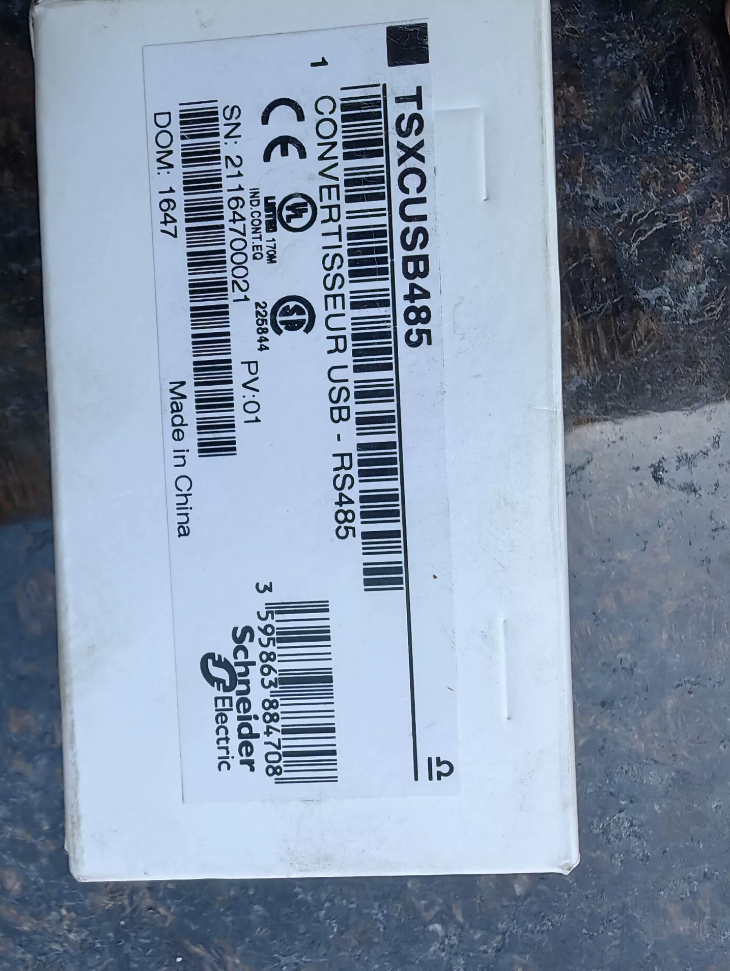

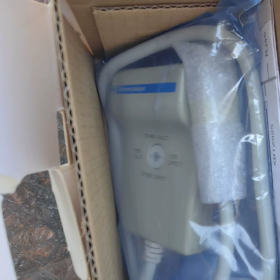
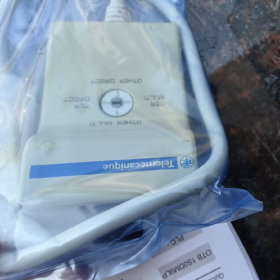
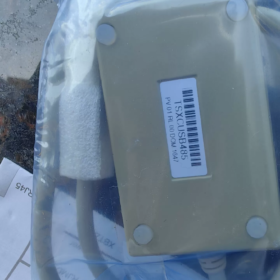
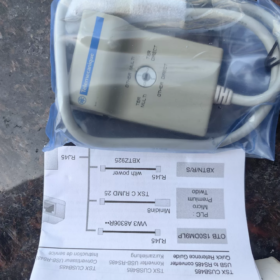
Orientation: Original Schneider USB-to-RS485 adapter for Uni-Telway/Modbus, connecting PC to legacy TSX-series PLCs; obsolete spare part. Replacement part number: TSXCUSB485C.
Note: This unit is merely a USB-485 converter box. The accessory cable TSXCRJMD25 (Mini-DIN8, 2.5 m) is mandatory for connecting to the TER port of Premium/Micro/Twido PLCs.
- Spécifications principales
| Article | Paramètre |
| USB Interface | USB‑A, USB1.1/2.0 full‑speed, USB‑bus‑powered (≈50 mA) |
| Côté terrain | 2‑wire differential RS‑485, Uni‑Telway protocol dedicated |
| Débit en bauds | 300 bps‑1 Mbps |
| DIP Rotary Switch | 4‑position rotary switch for point‑to‑point/multidrop,‑TER‑port/other‑port selection |
| Indicateurs LED | POWER power, TX transmit, RX receive |
| Température de fonctionnement | ‑40~+85℃, DIN‑rail clip‑on mounting support |
| Standard Cable | TSXCRJMD25 (Mini‑DIN8); XBTZ925 required separately for Twido RJ45 port |
| Logiciel pris en charge | PL7‑Pro, Unité Pro (Control Expert), TwidoSoft |
4-Position Rotary-Switch Definition
| Position | Mode | Scénario d'application |
| 0 | TER MULTI Multidrop | TER port, Uni‑Telway multi‑node bus |
| 1 | OTHER MULTI Multidrop | AUX port / third‑party RS485, multidrop bus |
| 2 | TER DIRECT Point‑to‑Point | Most‑used: PC direct programming/download to PLC TER port |
| 3 | OTHER DIRECT Point‑to‑Point | AUX‑port direct connection, general Modbus‑RTU devices |
✅ For direct PLC debugging: set rotary switch to 2 (TER-DIRECT)
- Compatible Device List
- Automates
Premium TSX P57 series
Micro TSX 37 / TSX 07 série
Twido TWDLCAE / TWDLMDA series
Nano, Neza series
- IHM: XBT-N/R/S series; OTB remote I/O; TSXSCA62 bus tap
❗Do NOT use for Altivar variable-speed drives or soft-starters; adapter damage may occur.
- Système opérateur & Driver Notes
- Driver package for original TSXCUSB485: `TLXCDDRV20M`. The Uni-Telway driver suite is included during PL7-Pro / Unity Pro installation; separate download is unnecessary.
- Original hardware: Windows XP, Win7. Poor compatibility under Win10/11; Error 39 frequently occurs. XP virtual-machine deployment is recommended.
- Third-party compatible TSXCUSB485C: upgraded hardware supporting Win10/Win11, USB self-powered, no power drawn from PLC TER port. Works with both TER and AUX ports.
- Virtual-machine tip: In VM-Ware / VirtualBox, fully pass-through the USB device to the guest OS. Stop the host-side `SchneiderUsbService` to avoid device occupation.
PL7-Pro Communication Parameters (Uni-Telway)
Network type: Uni-Telway
Serial settings: 8 bits de données, 1 peu d'arrêt, ODD parity, no flow-control; default baud rate 19200
PLC address: 1; COM port number must match Device-Manager assignment
The error `No remote ACK` is mostly caused by incorrect switch setting, wrong parity, or missing termination resistor.
- Distinction du modèle (Points de confusion courants)
- TSXCUSB485: Original, fin de vie; powered by PLC TER port; poor Win10 compatibility; sold as set: adapter body + TSXCRJMD25 cable.
- TSXCUSB485C: Upgraded third-party compatible variant; USB-powered; Win10/Win11-capable; replaces TSXPCX3030 / TSXCUSB485.
- TSXPCX3030: Older-generation USB programming cable, obsolete.
- TSXPCX1031: RS232 serial Uni-Telway cable (physical COM-port, non-USB).
- Dépannage courant
- Yellow exclamation mark / Error-39 in Device-Manager
Uninstall old drivers; block Windows automatic-driver updates; reinstall the Schneider Uni-Telway driver suite. Prefer XP virtual-machine for original hardware.
- COM-port recognized but no online connection, No-ACK
① Set rotary-switch to position 2 TER-DIRECT; ② Verify TSXCRJMD25 cable integrity; ③ Serial port ODD parity; ④ 120 Ω termination resistor at bus end; ⑤ Confirm PLC TER-port hardware health.
- Multidrop-mode communication OK, point-to-point fails: Abnormal PMC-pin level; use genuine TSXCRJMD25 cable.
- Maximum of four TSXCUSB485 adapters per PC due to hardware serial-number licensing limit.
- Foreign-Trade & Procurement Reference
Complete kit: TSXCUSB485 adapter body + TSXCRJMD25 (2.5 m Mini-DIN8 cable)
Reference HS-code: 85176290 (USB-RS485 communication-conversion adapter)
Liste de contrôle pour l'inspection des objets d'occasion: Inspect DIN-rail clips; verify POWER/TX/RX-LED operation; confirm smooth rotary-switch rotation. Prefer testing online upload of PLC program inside XP virtual-machine.
- Alternative-Selection Recommendations
New-project builds: Prioritize TSXCUSB485C, full Windows compatibility, USB self-powered.
Legacy-equipment maintenance: For used original TSXCUSB485, always deploy XP-SP3 virtual-machine. Avoid running original hardware natively under Win10 hosts.
Complete Programming-Procedure for TSXCUSB485 (USB-485)
Applicable PLCs: TSX Premium, TSX Micro, Twido; Protocole: Uni-Telway; Logiciel: PL7-Pro / Unité Pro (Control Expert) / TwidoSuite
⚠️ Original TSXCUSB485 exhibits poor Win10/Win11 compatibility; XP virtual-machine recommended. TSXCUSB485C runs natively under Win10/Win11.
For direct connection to PLC TER programming-port: rotate adapter switch to 2 (TER-DIRECT point-to-point).
- Hardware Wiring
- Power-up PLC; confirm RUN-LED is active with no hardware-fault alarms.
- Set TSXCUSB485 rotary-switch: Position 2 TER-DIRECT (PC direct programming for single PLC). Use position 0 TER-MULTI only for multi-node bus networks.
- Plug adapter USB-A into PC USB2.0 port (avoid blue USB3.0 ports, which cause frequent communication glitches).
- Connect matching cable TSXCRJMD25 (Mini-DIN8) to adapter; plug opposite end into PLC TER programming port.
For Twido units fitted with RJ45 communication-port, substitute cable XBTZ925. Never connect to drive AUX-port; permanent adapter damage may result.
- Driver Installation
- Driver package: `TLXCDDRV20M`. The Uni-Telway driver suite is bundled during PL7-Pro / Unity Pro installation and can also be installed separately.
- Insert adapter. Open Device-Manager → Ports (COM & LPT). Confirm device entry `TSX C USB 485 (COMx)` with no yellow warning symbol and record assigned COM-port number.
Original hardware frequently triggers Error-39 under Win10. Solution de contournement: XP virtual-machine with full USB-pass-through; ensure host OS does not claim the USB device.
- Open Drivers-Manager (Schneider Driver Manager) from Windows Control-Panel. Select tab UNITELWAY Driver. Click【Edit】, select your recorded COM-port and save settings. Run XWAY-TEST to validate link status before launching programming-software.
Fixed Uni-Telway Serial Parameters (ODD parity is the most-common pitfall)
| Paramètre | Valeur |
| Débit en bauds | 19200 (factory default of PLC TER‑port) |
| Bits de données | 8 |
| Bits d'arrêt | 1 |
| Parité | IMPAIR |
| Flow‑Control | Aucun |
❗Do NOT use no-parity. 90 % of `No remote ACK` faults arise from incorrect parity, mis-set rotary-switch, or defective cabling.
- PL7-Pro Online-Configuration (TSX Micro / Premium legacy PLCs)
- Launch PL7-Pro and open project matching CPU model.
- Top menu: `PLC → Define PLC Address`
Network type: Uni-Telway
Driver: UNTLW01
PLC address: SYS (fixed system address for TER-port programming; do not use address 1)
- Confirm and click `PLC → Connect`.
- Successful connection: CPU model is displayed in status bar.
Upload program: `PLC → Transfer → From PLC`
Download program: `PLC → Transfer → To PLC`
Online-monitoring and variable-forcing available; place PLC in STOP mode prior to download.
- Unité Pro / EcoStruxure Control Expert Setup
- Complete COM-port configuration inside Drivers-Manager; pass XWAY-TEST.
- Inside Unity: `PLC → Set Address`
Moyen: UniTelway01
PLC address: SYS
- Click Test-Connection; CPU-model identification indicates healthy communication.
- Go Online → Connect for program upload / download operations.
- TwidoSuite (Twido-series PLCs)
- Configure Uni-Telway COM-port inside Drivers-Manager.
- TwidoSuite communication-settings: select Uni-Telway, address SYS.
- Go online for program upload / télécharger.
- Common Error-Handling
- No remote ACK (most-frequent fault)
① Verify rotary-switch = 2 TER-DIRECT; ② enforce ODD parity; ③ inspect TSXCRJMD25 cable; ④ confirm PLC TER-port hardware integrity; ⑤ POWER-LED lit, TX/RX-LED blink during data traffic; ⑥ prefer USB2.0, avoid USB3.0 ports.
- Error-39 yellow warning in Device-Manager: Original hardware is incompatible with Win10/Win11 kernel. Use XP-SP3 virtual-machine with full USB-pass-through; stop host-side Schneider USB-service.
- Drivers-Manager reports COM-port Not-Ready: USB device seized by host OS. Re-plug adapter and restart Drivers-Manager.
- XWAY-TEST failure and persistent software-connection-failure: hardware-layer fault. Inspect cabling, rotary-switch setting and PLC TER-port power supply.
- Remarques importantes
- Original TSXCUSB485 draws operating power from PLC TER-port. If TER-port fails, POWER-LED stays dark and no communication occurs. TSXCUSB485C variant draws power from USB-bus.
- Maximum of four TSXCUSB485 adapters can run simultaneously on one PC, enforced by hardware serial-number limits.
- 120 Ω termination resistor required for multi-drop bus. For direct TER-port point-to-point link, built-in adapter termination is sufficient; external resistor is normally unnecessary.
- Switch PLC to STOP before program download; online-monitoring may run while PLC remains in RUN.
How to verify whether TSXCUSB485 runs natively under Win10/Win11
Conclusion fondamentale: Original TSXCUSB485 (no suffix-C) is NOT officially supported on Win10/Win11; Error-39 is highly probable. TSXCUSB485C is an upgraded third-party variant with USB self-power and Win10/Win11 compatibility.
⚠️ Remarque: TSXCUSB485C is NOT genuine Schneider new-old-stock. Schneider has ended production; all available units are third-party clones.
Method 1: Read label printed on housing (fastest check)
- TSXCUSB485 (no suffix-C, original Schneider)
❌ No native Win10/Win11-64-bit support
Powered by PLC TER-port; USB connector carries only signal, not operating power. POWER-LED stays dark when TER-port hardware fails.
Symptoms under Win10/Win11: yellow warning in Device-Manager, Error-39, driver cannot load. Even when COM-port appears, online sessions are unstable and prone to disconnection.
Officially qualified OS: Windows XP, Win7-32-bit. Use XP virtual-machine with full USB-pass-through for Win10-host computers.
- TSXCUSB485C (suffix-C, third-party compatible)
✅ Works under Win10/Win11-32/64-bit
USB-bus-powered, independent of PLC TER-port power. POWER-LED remains lit even when PLC TER-port is defective; only communication will fail.
Hardware auto-flow-control; same four-position rotary-switch; supports Uni-Telway and Modbus-RTU.
Pitfall: Some compatible adapters print only TSXCUSB485 (omit-C suffix). Judge by power-supply-behaviour in such ambiguous-label cases.
Méthode 2: Hardware power-supply-behaviour test (for unreadable labels)
| Fonctionnalité | Legacy original TSXCUSB485 (non‑Win10‑compatible) | TSXCUSB485C compatible variant (Win10‑ready) |
| USB‑plugged‑in, PLC disconnected | POWER‑LED stays OFF, no internal power | POWER‑LED lights immediately; PLC connection unnecessary |
| PLC TER‑port hardware failure | Adapter completely non‑operational | LED stays on; only communication fails |
| Power source | 50 mA drawn from PLC TER‑port pin‑7 VP | Supplied by host USB port |
Quick field test: Connect adapter USB-A to PC, leave field-side connector open-circuit (disconnected from PLC).
LED off → legacy original TSXCUSB485, poor Win10/Win11 compatibility.
LED immediately on → upgraded TSXCUSB485C, native Win10/Win11-capable.
Méthode 3: Device-Manager observation under Windows
- Insert original TSXCUSB485 into Win10/Win11 host:
Yellow warning icon with Error-39, message “driver cannot be loaded”.
Even after disabling memory-integrity and driver-signature-enforcement, COM-port may vanish randomly and online-timeouts occur.
Manufacturer statement: Original drivers lack Win10/Win11 digital-signatures. Modern Windows kernel security blocks driver-loading. No reliable native workaround exists; virtual-machine deployment is the accepted solution.
- TSXCUSB485C upgraded variant:
After driver installation, COM-port appears without warning marks. Recognised within Drivers-Manager; XWAY-TEST passes normally.
Common Misconceptions Clarified
- Updating Schneider driver suite will NOT make legacy TSXCUSB485 work under Win10/Win11
This is hardware-firmware limitation, not driver-version issue. New-generation Windows kernel security will still reject unsigned legacy drivers irrespective of Modbus-Driver-Suite release-version.
- PL7-Pro itself does not run natively on Win10/Win11. Even with TSXCUSB485C hardware, PL7-Pro still requires virtual-machine environment. Unity Control Expert can run natively under Win10/Win11 paired with TSXCUSB485C.
Recommandations d'approvisionnement
- If you own genuine legacy TSXCUSB485 and host-PC runs Win10/Win11: deploy XP-SP3 virtual-machine with complete USB-device-pass-through. Do not attempt native-host operation.
- New-spare-part procurement: select TSXCUSB485C for modern-OS compatibility with USB-self-power.


NH42-63-318x560.png "Commutateurs de transfert automatiques de type PC CHINT (ATS)NH42-63/4SZ")